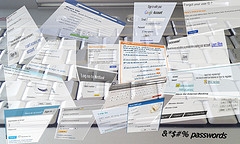
 As we get more and more involved with Social Media and other online tools, each one meets uswith the need to have a userid and a password. I just took a look at my list and I have close to 100 sign-ons. These run the gamut from sites I tried once and haven’t been back to again to my Facebook and LinkedIn accounts and then to sites where security is important like my Amazon.com account.
Using only one (or a few) passwords is not a good idea
A common way to deal with password complexity is to use a single password for all or most of your sites. But this means if someone guesses your password for one site, they can try it for your other sites. And if one of these is your bank!!
So you might try a few passwords
This means you can give each bank a unique password, but you can use a less secure password for other sites. As we become more involved with Social Media and sharing information online, it becomes more important that we protect the information about us. This means that we don’t want anyone to be able to pretend to be us on Facebook or Twitter or Google+ or our own Website. It also means that our email is more important as that is tied to these accounts and can be used to get passwords when they are forgotten.
Why not let your computer help
There are a number of different ways that one can keep track of keywords.
- The easiest was is a simple list on paper. This can either be created by hand or on your computer. Just remember, if you store it on your computer, it can be accessed by anyone who has physical access to your computer, not just by malware that has broken into your computer over the Internet.
- You can let your browser remember your passwords. This means that anyone who can get on your computer (do you have a password?) can just open the browser and be signed in.
- Use a program that is supported by a hardware device so you can take it with you. Roboform and Yubikey allow you to store your passwords or other authenticating information on a USB key.
- Use an application that has a single strong password and maintains your userids and passwords, transferring them to your computer as needed. This can be done with varying levels of security; the one I understand and trust is LastPass.

An Introduction to LastPass
LastPass is free although it has a premium version as well. It is available for use when signing into websites on Internet Explorer, Firefox, Chrome, Safari and Chrome. And it can be Windows, Mac, or Linux. And it encrypts all of your passwords so no one can see them over the Internet.
I love the way LastPass offers to save any new usernames and passwords and then offers to fill them in later. If I have a site that Lastpass doesn’t recognize as having username/password fields, I can use the note facility so I just have to click on the LastPass icon and look up the information. This means I can also store passwords that I use for non-computer stuff too!
I’ve been using LastPass for over 6 months now and have just decided that I need the Premium version. And I’m starting my clients on the free version to help them. See what LastPass can do for you!
© 2012 by Sherry Goncharsky




Leave a Reply