By Sherry, on January 30th, 2012 I was visiting a new client when she told me that she was so glad she had met me. The last computer person she worked with had told her that “she was using the computer wrong.” My philosophy is everyone uses a computer in their own way.
A computer is just a tool. The Internet has turned it into a communications tool but the early personal computers could only be used for computation.
The World Wide Web wasn’t always easy to use. In the beginning, there was no graphical user interface. That meant that you had to know just what to type to get anywhere on the Internet; you had to type 152.118.24.40 instead of www.ui.edu to get to the University of Illinois, one of the early Internet sites.
Search engines weren’t always quick to be aware of new websites. Google and Yahoo were late to the search game. And the original search engines were built manually. If you started a new site, you could go and register it. Then someone would look at it and add it to the directory.
Early email users had to be on the same Internet Service Provider (ISP). Someone on AOL could only send email to other AOL users. And we all got to the Internet via dial-up modems.
I could go on with the history, but we all use computers right. Some of us just use it for more than others. It doesn’t matter if you only use email or if you only check out three websites. It doesn’t matter that you can’t use everything that your computer is capable of doing.
Keep reading my blog and I’m sure you’ll find something that discusses how you are using your computer. I’m writing this blog to both help you understand more about what you are currently doing and possibly interest you into trying something new.
© 2012 by Sherry Goncharsky
By Sherry, on January 24th, 2012 
Don’t know what to do about all of the pop-ups on your PC that keep telling you that a program needs to be updated? Ignoring these can leave you vulnerable to attacks from viruses, trojans and other malware. Click on this link to download and print this information. Keep this list by your computer to help you decide.
Important Programs to Keep Updated
- Microsoft Windows/ Microsoft Office
As long as you have your system set up to locate new updates, it will automatically install these when you shut down your system. Try a second time and, if you still get a message that updates have failed, you should seek professional assistance to determine why.
- Your Anti Virus Program
Need I say anything more about this one. Make sure that it runs regularly too.
And if you get a pop-up saying there are viruses on your machine and you need to click for updates, DON’T – only use your anti-virus program button or automatically apply updates to your system.
- Adobe Reader
Most of us use Adobe Reader to open files with an extension of .PDF so it is important that this product not open us to malware problems. Once you have gotten your updates past 9.2, Adobe Reader installs a program that automatically updates instead of waiting for you to download and install them – a great help to all of us. If you don’t have Adobe Reader 9, go to adobe.com and download it. Make sure that you don’t have any other products checked.
- Adobe Flash will also tell you when it needs to be updated.
- Java
Behind the scenes, Java helps websites work correctly. Usually it finds its way onto systems when its needed. Then it must be kept updated. Java will pop up and indicate that it has updates for you to install. Heed this warning. When downloading, look carefully to make sure that you uncheck any other products that are being downloaded at the same time if you don’t want them.
- iTunes and QuickTime
These Apple products are used by a lot of us now with the strong infiltration of iPod, iPhone, and now the iPad. And iTunes is dependent upon having QuickTime installed so even if you don’t use it to watch any videos, it still needs to be updates. Apple has a program that notifies you when there is a new version of iTunes/QuickTime. When you go to download and install the program, uncheck the Safari browser and any other programs that you may not want.
- If you have other tools that you use, such as tools to check for spyware and other inappropriate programs, be sure to check for their updates as well.
- And don’t forget to keep the programs you use everyday up-to-date as well. For example, Quicken or Quickbooks.
By Sherry, on January 19th, 2012

I’m often asked by clients about documents (or files) that they see that have this symbol. They usually show up as attachments or as a file to download from a website. So let me explain just what these are and how you can read them.
What is a PDF?
Quoting from Wikipedia:
Portable Document Format (PDF) is an open standard for document exchange. This file format, created by Adobe Systems in 1993, is used for representing documents in a manner independent of application software, hardware, and operating systems. Each PDF file encapsulates a complete description of a fixed-layout flat document, including the text, fonts, graphics, and other information needed to display it.
The advantages of creating a PDF are:
- Files can be used on both PCs and Macs
- Files look the same when read or printed. (No worrying about formatting changes.)
- Adobe’s program to use PDFs is available for free. (And other programs are available for using them as well.)
- PDFs are difficult to change, so sender is sure that the recipient can’t make changes
How do I read/open a PDF?
Many computers come with Adobe Reader already installed. In this case, all you have to do is open the file and you can read and print it. Don’t forget to update Adobe Reader when the pop-up appears. This will help keep your computer safe and secure.
If you can’t open the file, you will need to install Adobe Reader. Click on this link and the click on Adobe Reader (on the right side of the screen). This will take you to the proper download for your operating system version. If you don’t want anything extra, uncheck the box. Now click download and follow the installation directions.
Now you can handle any PDF file you are sent!
© 2012 by Sherry Goncharsky
By Sherry, on January 17th, 2012 
If you’ve moved frequently, you may have found that one of the problems is that your current Internet service provider (ISP) is unavailable at your new location. Planning ahead can make this a lot easier. You only have to notify people once and can change ISPs as often as needed. You can even do this without a move planned so that you can avoid a future loss of contact.
- Use a provider that isn’t tied to an ISP.
Get yourself a new email address with a free provider like Gmail or Hotmail or even AOL. Not only can you access your email via webmail from your own computer, you can do this from any other computer as well. This is a great solution for snowbirds and those who travel a lot. And these addresses can be accessed by using the provider’s webmail option or through a most email programs.
- Obtain your own domain name (like a business might do) and a hosting company.
You may obtain your email address through your hosting company or you may do it separately. Just make sure that it is registered in your name as owner. Although this does require an annual charge, this gives you the option to change hosting companies if you aren’t satisfied. Hosting companies allow you to either use their webmail interface or direct the mail to your email program (like Outlook or Thunderbird). And your hosting company should allow you to create more than one email address at your domain.
Also when changing email addresses, you will want to look into how to keep your existing messages and address book. Again, planning ahead will give you an address that is independent of location and ISP.
Email Image: http://www.flickr.com/photos/rmgimages/
© 2012 by Sherry Goncharsky
By Sherry, on January 10th, 2012 
I just returned from a client who, among other concerns, asked why her computer had suddenly gotten slower. There are many reasons for slow computers, but this one proved to be something different.
Check the Usual Sources of Slowness
This was a Windows XP computer so I first took a look at the processor and amount of memory. That could be the problem, but it was slow even when doing something simple like opening her default browser, Firefox. Although I suggested that a new computer would definitely have its advantages, I didn’t still didn’t think that was necessary.
Reopening Hotmail showed me the problem
After fixing a couple of unrelated problems, I opened Hotmail (in Firefox) again. This time, I got a screen telling me that my computer was at risk because Internet Explorer was downlevel – even though I hadn’t opened Internet Explorer.
I clicked on the link to download Internet Explorer 8, the latest version for Windows XP, and installed it. After its required reboot, the performance problems were gone.
What’s the Moral?
Even if you don’t use Internet Explorer, check to make sure you have the latest version installed. Just having the older versions on your system can lead you to vulnerabilities.
What Version Should You Have?
For Windows XP, you should have Internet Explorer Version 8. Windows Vista and Windows 7 should both be upgraded to Internet Explorer 9.
Find out What You Have Installed
 Clicking on the is button or the word Help, then selecting About Internet Explorer will tell you the Version you are running. Clicking on the is button or the word Help, then selecting About Internet Explorer will tell you the Version you are running.
Keep Yourself Safe Online
Running outdated software can cause security problems when you go online. And with today’s high speed connections, you don’t even have to have a browser open to have a problem. If you don’t know what to do, ask for assistance.
© 2012 by Sherry Goncharsky
By Sherry, on January 9th, 2012 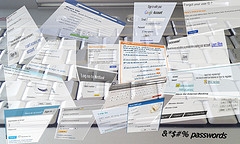 As we get more and more involved with Social Media and other online tools, each one meets uswith the need to have a userid and a password. I just took a look at my list and I have close to 100 sign-ons. These run the gamut from sites I tried once and haven’t been back to again to my Facebook and LinkedIn accounts and then to sites where security is important like my Amazon.com account. As we get more and more involved with Social Media and other online tools, each one meets uswith the need to have a userid and a password. I just took a look at my list and I have close to 100 sign-ons. These run the gamut from sites I tried once and haven’t been back to again to my Facebook and LinkedIn accounts and then to sites where security is important like my Amazon.com account.
Using only one (or a few) passwords is not a good idea
A common way to deal with password complexity is to use a single password for all or most of your sites. But this means if someone guesses your password for one site, they can try it for your other sites. And if one of these is your bank!!
So you might try a few passwords
This means you can give each bank a unique password, but you can use a less secure password for other sites. As we become more involved with Social Media and sharing information online, it becomes more important that we protect the information about us. This means that we don’t want anyone to be able to pretend to be us on Facebook or Twitter or Google+ or our own Website. It also means that our email is more important as that is tied to these accounts and can be used to get passwords when they are forgotten.
Why not let your computer help
There are a number of different ways that one can keep track of keywords.
- The easiest was is a simple list on paper. This can either be created by hand or on your computer. Just remember, if you store it on your computer, it can be accessed by anyone who has physical access to your computer, not just by malware that has broken into your computer over the Internet.
- You can let your browser remember your passwords. This means that anyone who can get on your computer (do you have a password?) can just open the browser and be signed in.
- Use a program that is supported by a hardware device so you can take it with you. Roboform and Yubikey allow you to store your passwords or other authenticating information on a USB key.
- Use an application that has a single strong password and maintains your userids and passwords, transferring them to your computer as needed. This can be done with varying levels of security; the one I understand and trust is LastPass.

An Introduction to LastPass
LastPass is free although it has a premium version as well. It is available for use when signing into websites on Internet Explorer, Firefox, Chrome, Safari and Chrome. And it can be Windows, Mac, or Linux. And it encrypts all of your passwords so no one can see them over the Internet.
I love the way LastPass offers to save any new usernames and passwords and then offers to fill them in later. If I have a site that Lastpass doesn’t recognize as having username/password fields, I can use the note facility so I just have to click on the LastPass icon and look up the information. This means I can also store passwords that I use for non-computer stuff too!
I’ve been using LastPass for over 6 months now and have just decided that I need the Premium version. And I’m starting my clients on the free version to help them. See what LastPass can do for you!
© 2012 by Sherry Goncharsky
|
WELCOME You've reached my online home. Please take a look around as I add more to it.
 |